OBS Studio is free, open-source software for recording your screen and streaming live video, and the Windows download is where most new users begin. This guide covers the current release, OBS Studio 33.0.1, released on October 29, 2026, and walks you through choosing the right file for your computer, getting it from an official source, and checking it before you run anything. You do not need an account or payment details, and the download is the complete program, not a trial. Many problems that look like installation failures actually start at the download stage: the wrong file for the processor, a download from a copycat site, or a file that stopped halfway through. Each is easy to avoid once you know what to check.
What the Windows download gives you
OBS Studio is free and open-source software released under the GNU General Public License version 2 or later. There is no trial period, licence key, or paid edition: the file you download is the complete program. Once installed, you can record your screen, capture a game or application window, mix audio from your microphone and computer, arrange video sources into scenes, and stream live. You can also use it purely as a recorder, which is how many teachers and creators use it every day.
The Windows download comes in two forms. Most Windows computers use a 64-bit x64 processor, and for those the download is a standard installer ending in.exe: you run it, follow the prompts, and OBS Studio is installed. A smaller group of Windows computers, mainly newer laptops built around ARM64 processors such as Qualcomm Snapdragon chips, need a different file: a.ZIP archive that you extract rather than install. The two files are not interchangeable, so Section 2 explains how to tell which one your computer needs.
Before you download: check your PC
Before clicking any download button, confirm two facts about your computer: which version of Windows you run, and whether your processor is x64 or ARM64. OBS Studio 33.0.1 supports Windows 10 and Windows 11. If you run one of those, you are in the supported range; if you run an older version, check the official OBS Project pages for guidance on older releases rather than forcing the new installer to work. We have separate guides for installing OBS Studio on Windows 11 and installing OBS Studio on Windows 10.
How to check your Windows version and processor
Press the Windows key and I together to open Settings, then choose System and About. The About page shows your edition, such as Windows 11 Home or Windows 10 Pro, and a line labelled "System type". On most computers it says "64-bit operating system, x64-based processor", which means you need the standard x64 installer. If it says "ARM64-based processor", you need the ARM64.ZIP file instead. The file names give the same clue: the x64 installer is OBS-Studio-33.0.1-Windows-x64-Installer.exe, while the ARM64 file is OBS-Studio-33.0.1-Windows-arm64.zip.
Check storage and your connection
The x64 installer is 178.0 MB and the ARM64 archive is 190.9 MB, so make sure you have a few hundred megabytes free on the drive where your browser saves downloads, and much more free where you plan to store recordings, since recordings take far more space than the installer. A stable connection matters more than a fast one: the file downloads in a few minutes on typical broadband, but an unstable connection can leave you with an incomplete file, so avoid other large downloads at the same time.
Where to download OBS Studio safely
The safest place to get OBS Studio is from the official OBS Project distribution channels. The official website is obsproject.com, its download page is obsproject.com/download, and the release files are also listed on the project's GitHub releases page at github.com/obsproject/obs-studio/releases. The links in this guide point directly to those official files. OBS Descargar is an independent guide site, not the official OBS Project site, and we do not modify, bundle, or repackage the installer.
The source matters because OBS Studio is popular and free, so copycat download sites are common. Some wrap the real installer in their own downloader that adds unwanted software; others host modified files. A safe page has recognisable signs: the address belongs to obsproject.com or github.com/obsproject, the file name matches the official release exactly, and the page never asks you to install a download manager, browser extension, or "download accelerator" first. Be suspicious of any site promising a "cracked", "pro", or "premium" version, because no such version exists. The official page always offers the latest release, currently 33.0.1; a page offering a much older version without explaining why is probably not official.
Downloading the Windows x64 installer
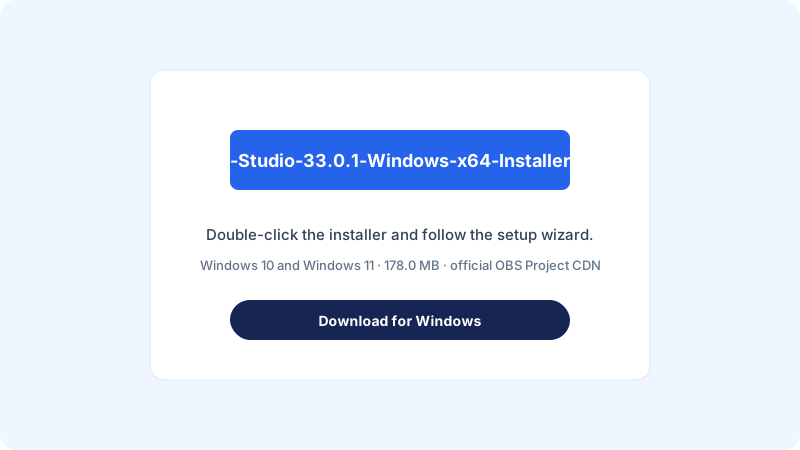
Most readers need this section, because most Windows computers use x64 processors. The file is the Windows x64 installer, OBS-Studio-33.0.1-Windows-x64-Installer.exe, at 178.0 MB. You can download it directly from the official content delivery network at the link below; clicking it should start the download immediately or prompt you to choose where to save the file.
Download OBS Studio 33.0.1 for Windows (x64 installer, 178.0 MB)
- Close programs you do not need, so nothing competes with the download.
- Open your browser and go to the official OBS Project download page, or click the direct link above.
- Confirm the page offers OBS Studio 33.0.1 with Windows selected.
- Click the Windows download button and save the file to a location you will remember, such as Downloads.
- Wait until the download finishes completely; your browser shows progress in its downloads area.
- Check the finished file is named OBS-Studio-33.0.1-Windows-x64-Installer.exe and is about 178.0 MB.
- Leave the file in Downloads until you are ready to install it.
A normal download ends quietly: the browser reports completion, and the file sits in your folder with the correct name and size. If the size is much smaller than 178.0 MB, the download stopped early; delete the partial file and try again rather than running it. If the browser warns that the file "is not commonly downloaded", that is a standard warning for executable files and does not mean the file is unsafe when it came from the official source; choose Keep to confirm.
Downloading OBS Studio for Windows on ARM64
If your computer has an ARM64 processor, the x64 installer is not the right file, and you should not try to run it. Instead you need the ARM64 build, distributed as a.ZIP archive rather than an installer. The file is OBS-Studio-33.0.1-Windows-arm64.zip, at 190.9 MB, available from the official GitHub releases page at the link below. The difference matters: a.ZIP file does not install anything by itself. You download it, extract its contents to a folder, and run OBS Studio from inside that folder.
Download OBS Studio 33.0.1 for Windows ARM64 (.ZIP archive, 190.9 MB)
- Confirm on the Settings About page that your system type says ARM64-based processor.
- Click the ARM64 link above, or find the same file on the official GitHub releases page for 33.0.1.
- Save the.ZIP file to Downloads and wait for the download to finish completely.
- Check the file is named OBS-Studio-33.0.1-Windows-arm64.zip and is about 190.9 MB.
- Right-click the.ZIP file, choose Extract All, and pick a destination folder you will remember.
- Open the extracted folder and find the OBS Studio application file inside it.
- Do not delete the extracted folder afterwards, because the program runs from it.
For example, if you extract the archive to a folder called OBS Studio on your Desktop, the application file lives inside that folder. Right-click it and choose Pin to Start, or create a desktop shortcut. If you later move or delete the extracted folder, the shortcut stops working, because unlike a traditionally installed program there is no separate copy elsewhere.
What to do after the download finishes
Once the download completes, verify it before running anything. Open the folder where you saved the file and check three things: the file name matches the official name exactly, the size is close to the published size (178.0 MB for the x64 installer, 190.9 MB for the ARM64 archive), and the file type is what you expect, an application ending in.exe for x64 or a compressed folder ending in.zip for ARM64. If the name has an extra word or a double extension such as.exe.zip, stop and download again from the official link.
Next, think about where the file should live. Downloads is a fine temporary home, but it is a folder many people clean out without thinking, so once OBS Studio is installed you can delete the installer if you need space. The ARM64 archive is different: because the program runs from its extracted folder, extract it to a permanent location first, as Section 5 describes. Windows may show a SmartScreen warning the first time you run the installer. That is a normal prompt for downloaded executable files. If you downloaded from the official source and the name and size match, you can proceed; if you downloaded from anywhere else, treat the warning as a reason to stop and re-download.
Getting ready to install and launch
Downloading is only the first half of the job, so use this section as a bridge to installation. Before running the installer, close other applications, especially any program using your camera or microphone, such as a video calling app, because OBS Studio will want access to those devices when you first open it. Save open work, plug a laptop into power, and make sure you are signed in with an account allowed to install software; on a work or school computer you may need an administrator password.
When you run the x64 installer, Windows asks for permission to make changes to your device; that is the User Account Control prompt, and choosing Yes lets installation proceed. The installer offers a destination folder, and the default is normally the right choice. After installation, OBS Studio offers an auto-configuration wizard that tests your hardware and suggests settings. Treat those suggestions as starting points: the best settings depend on your hardware, encoder, and connection. Our guide to how to use OBS Studio walks through the first launch and your first test recording, and recording your screen with OBS is a good next step. If the program will not open after installation, see fixing OBS Studio when it will not open before reinstalling.
Common mistakes
The most common mistake is downloading the wrong architecture: an x64 installer for an ARM64 computer, or the ARM64 archive for an x64 computer. The download itself succeeds, which is what makes this so frustrating, and the problem only appears when you try to run the file. Checking the System type line in Settings before downloading prevents it entirely. A related mistake is downloading the ARM64.ZIP and expecting an installation wizard; remember the archive is a portable, extracted build that must be extracted before use.
Another frequent mistake is downloading from the first search result instead of the official source. Copycat sites often rank well and use names and logos that look convincing at a glance, yet their files may be outdated, bundled with extra software, or modified in ways you cannot see. Always check the address bar for obsproject.com or github.com/obsproject. A third mistake is running a partially downloaded file: if the size is far smaller than 178.0 MB or 190.9 MB, delete it and download again. Finally, do not save the file somewhere obscure and then download it again, ending up with several copies named with numbers in brackets; choose Downloads and check there first.
Troubleshooting
If the download will not start, the cause is usually the browser or the network rather than OBS Studio. Try a different browser first, since that rules out an extension or a corrupted browser setting in one step. Check you are online by loading another website, and if you are on a work, school, or public network, try a different network if one is available, because some networks block executable downloads.
If the download starts but stops partway through, or finishes far smaller than the published size, delete the partial file and try again when your connection is stable and no other large downloads are running. If the same thing happens repeatedly, try the other official route: if the content delivery network link failed, use the GitHub releases page, or the other way around.
If the browser says the file is blocked or dangerous, read the message carefully. Browsers block executable files by default on some settings, and the message usually offers a Keep option for files you trust. Only use it if you are certain the file came from the official OBS Project source and the file name matches exactly. If the warning mentions a different file name or a site you do not recognise, do not keep the file.
Frequently asked questions
Is OBS Studio really free to download for Windows?
Yes. OBS Studio is free and open-source software, released under the GPLv2 licence or later. There is no payment, licence key, trial period, or paid edition. The Windows installer from the official source is the complete program.
Which file should I download for a normal Windows laptop or desktop?
For almost all Windows laptops and desktops, download the x64 installer, OBS-Studio-33.0.1-Windows-x64-Installer.exe, which is 178.0 MB. Only download the ARM64.ZIP file if your computer has an ARM64 processor, confirmed on the Settings About page under System type.
What is the latest version of OBS Studio?
The latest version covered in this guide is OBS Studio 33.0.1, released on October 29, 2026. Version numbers change over time, so check the official OBS Project download page or releases page if you are reading this much later.
Do I need an account to download OBS Studio?
No. You do not need to create an OBS Project account, sign in, or provide an email address. If a download page asks you to register before downloading, you are not on the official page; leave and use the official links in this guide instead.
Why is the ARM64 download a.ZIP file instead of an installer?
The Windows ARM64 build is distributed as a.ZIP archive, a portable, extracted build rather than a standard installer. You download the archive, extract it to a folder, and run OBS Studio from inside that folder. Keep the extracted folder, because the program runs from it.
Conclusion
Downloading OBS Studio for Windows is straightforward once you know which file you need and where to get it. Check your Windows version and processor architecture first, download the x64 installer or the ARM64.ZIP archive from the official OBS Project source, and confirm the file name and size before running anything. Next, follow our guide to installing OBS Studio on Windows 11 or installing OBS Studio on Windows 10, then try your first recording with recording your screen with OBS.